Altus Site Visit App
Conducting site visits is a common need among architects, engineers, and other consultants in the building industry. Altus Group tracks costs incurred by borrowers on construction projects and prepares regular detailed reports for lenders (Banks), outlining detailed analysis on progress and spending. As such, they conduct regular site visits to assess construction progress and ensure that costs align with project milestones.
During my role at Altus, I supported the development of a mobile app to streamline field reviews and reporting by improving usability and interface design on their internal mobile and desktop platforms.
The Problem
Traditionally, the site visit process at Altus involved manually documenting photo reports and then updating progress matrices in excel. This process was inefficient and inaccurate at times.
According to one senior member of the team, they had previously tested other mobile apps in the past, and had always encountered the same issue. Other apps were tedious to use and incompatible with the way Altus collected progress data.
Business Process - Site visit

To improve efficiency, we developed an mobile app in-house to simplify photo documentation and enable real-time input of progress data during the field reviews. The app would serve as an extension to Altus's existing desktop report creation platform.
User Pain Points
Uploading and organizing site photos post-visit created delays.
Staff disliked storing site photos on personal devices.
Delayed uploads led to inaccurate progress matrices.
Senior staff couldn’t access real-time site updates until photos were uploaded.
Value Propositions
Cloud photo management. Centralized storage eliminates the need for local backups.
Instant visibility. Senior team members can access site photos as soon as they’re taken.
Real-time reporting. Users can update the project matrix on-site, improving report accuracy.
Operational efficiency. Reduced billable hours spent organizing media and compiling reports.
Business Process - Using the App

Business & User Needs
To identify Business and user needs, I had casual conversations with senior staff, managers, and Juniors who conducted site visits more regularly. Some primary concerns were time efficiency and safety. Findings were organized using affinity mapps.
User needs
Minimize time spent inputing data during field reviews
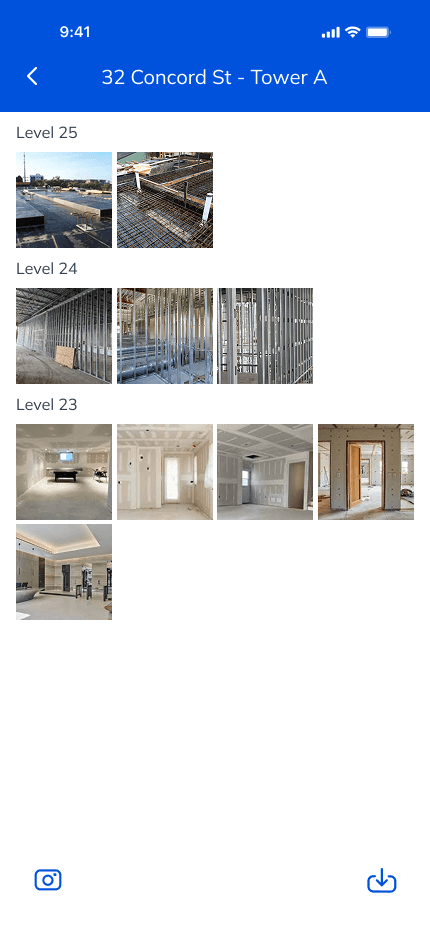
Facilitate categorizing photos by project, phase, and floor level.
Avoid User fatigue, as increased tasks during site visits was perceived as tedious.
Ability to manage different projects with ease.
Business needs
Reducing screen time on-site, which could create distractions in hazardous environments.
Reduce billable time spent on administrative tasks
Ensure integration with Altus desktop platform.
Minimize training staff on the app.
Meeting notes

Initial Concept
Given my familiarity with the business process at Altus, and easy access to feedback, there was enough information to create the first low fidelity mockup. The aim of this prototype was to serve as a starting point to present the idea to senior staff and gain more comprehensive insights.
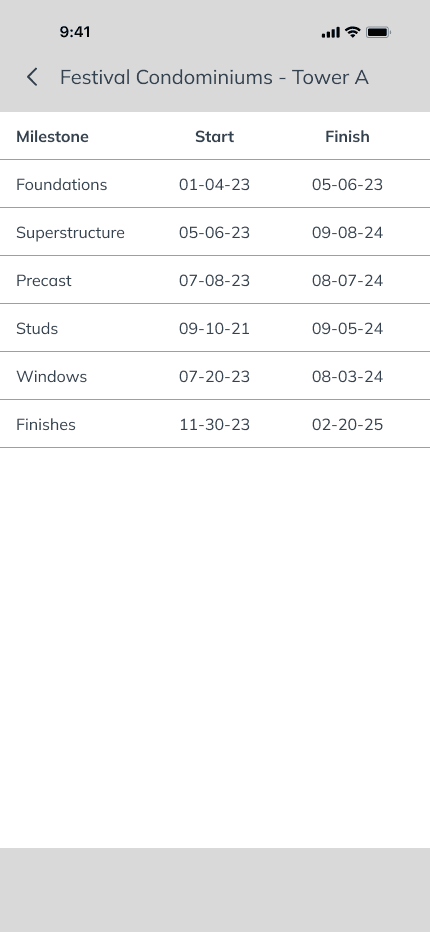
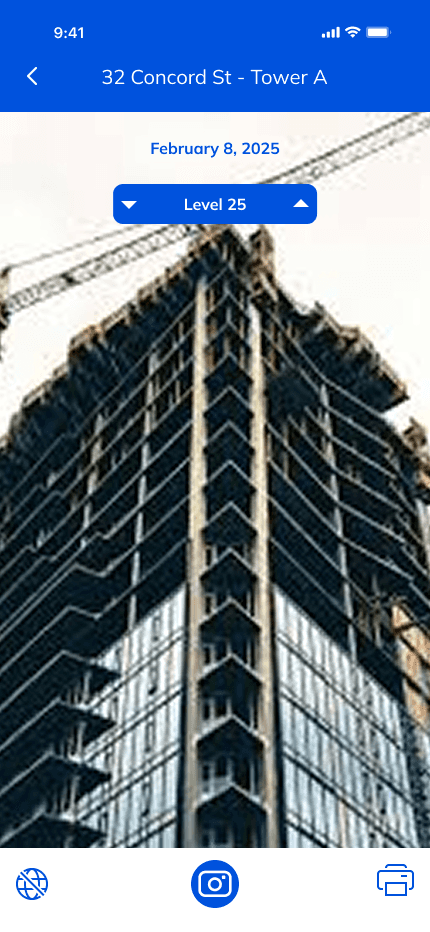
The app incorporated a way for users to take photos and categorize them by project, phase, level, etc. It also incorporated a feature to complete the progress matrix on-site, rather than on excel, potentially leading to more accurate reporting.

Checklist
Milestones

Dashboard
User Flow - Updating Progress

Information Architecture

First Meeting with Senior Staff
After presenting the concept to senior staff, some initial concerns came up. The progress checklist had roughly 100-150 line items, so it would take users too long to find and update each line item. Filling the checklist created dangerous distractions due to time spent scrolling.
As such, the next challenge was to further optimize data input on the app and reduce scrolling time.
Prototypes
Based on the feedback gathered, an improved prototype incorporated a simpler way to update the checklist by organizing items into categories and adding a search bar. Some checklist items, where deemed redundant on user interview and thus removed.
In this version, completing the progress checklist took roughly 15 minutes, while updating the progess matrix in excel took 30-40 minutes. Thus, the app was saving users time.

Home

Checklist

Checklist expanded

Dashboard

Camera
Camera Roll
User Testing
Two users tested several mockup versions of the app on site, as well as during virtual meetings. They were asked to note how long it took them to fill the checklist and how intuitively they could find each line item. The prototype got further refinements based on the users's feedback.
According to the users, the app didn't add too much time to their site visit. However, it created the illusion of doing so. As such, the number of line items was reduced where possible. Grouping items by category also eliminated the need for scrolling.
Second Meeting with Senior Staff
Senior staff was happy with the refined version of the prototype. As it allowed for user to print progress reports directly from the app. However, they were concerned its compatibility with the reporting app they were developing for desktop.
As such, I scheduled a meeting with the lead developer to introduce the concept and discuss the fesability of building the mobile app.
Minimum Viable Product
Meeting with Lead Developer
The next step was to develop the most refined prototype into a functional mobile app. During the first meeting with the lead developer, he mentioned that he had already worked on a similar mobile app in the past, and had conducted user tests with the Calgary team, who had mixed opinions about the checklist feature. As such he had decided the remove it altogether.
Due to positive feedback from the Toronto team, I decided to include the checklist as an optional feature. Depending on the size of projects and scope of work, some users would benefit from using the checklist feature while other's saw it as extra work.
Home

Projects

Checklist

Checklist expanded

Camera roll
Camera
Note: As per Altus's policies, sharing any internal data concerning clients is prohibited. As such, a link to the MVP is not available. This prototype encompasses changes included in the final product.
What changed? - Optimized user flow
The final version incorporated a more simplified user flow that prioritized first time users. This was accomplished by reducing the number of user decisions needed, keeping it to a maximum of two, where possible.

Product Launch
The final version of the app was developed on Microsoft PowerApps by the Altus Toronto team. It served primarily as a platform to take and store photographs within Altus's Sharepoint.
Lessons and Results
The Site Visit App is currently being piloted with Canadian employees at Altus Group, with plans to scale to international offices in the future. With over 300 potential users, the project continues to evolve and integrate with other internal tools, including the Report Writing App. A few major take aways include the following:
Communicating the value of UX. Creating an interactive prototype early in the process was essential to help stakeholders understand the app’s potential impact and secure buy-in.
Justifying design decisions - Advocating for specific features, such as the checklist feature, required clear, evidence-based rationale to distinguish the app’s benefits from existing tools.
Evolving user perspectives. Initial user feedback reflected some confusion, but user sentiment improved significantly as they became more familiar with the app. This highlights the importance of iterative testing, and accounting for user's learning curve.